Scooter Utilities Editor Preferences
Reference for the persistent editor settings Scooter Utilities adds to Editor Preferences.
Scooter Utilities' Editor Preferences let you configure settings that persist across editor restarts and across every project you open with the same engine version.
To open these settings, go to Edit > Editor Preferences, then select Scooter Utilities under the Plugins section. You can also click Plugin Settings... in the Scooter Utils toolbar dropdown.
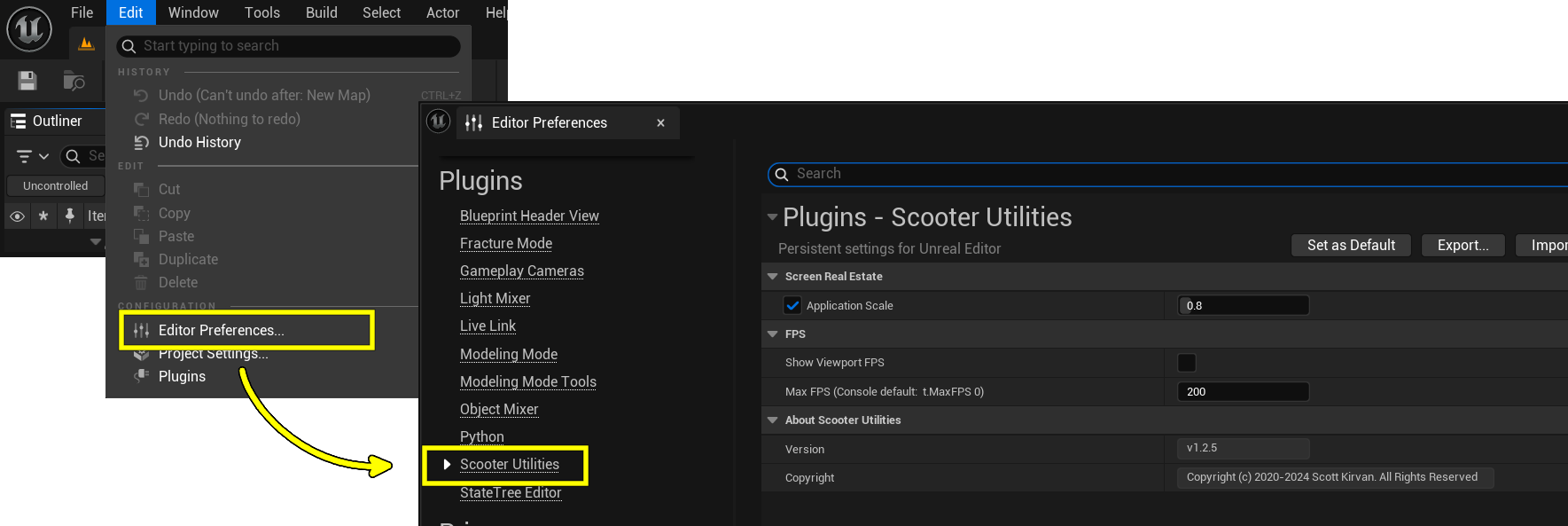
Settings Reference
Screen Real Estate
| Name | Description |
|---|---|
| Application Scale | Scales the size of editor fonts and widgets. Enable the checkbox to override the engine's scale, then set a value between 0.5 and 3.0. |
FPS
| Name | Description |
|---|---|
| Show Viewport FPS | Shows the current FPS in the editor viewport, like stat fps, and keeps it on between restarts. |
| Max FPS (Console default: t.MaxFPS 0) | Sets the editor's maximum frame rate, like t.MaxFPS, but persistent across sessions. Set to 0 to let the engine decide. |
Hotkeys
| Name | Description |
|---|---|
| Enable Restart Editor Hotkey | Enables the hotkey for Restart Editor. |
| Restart Editor Hotkey | The key combination that restarts the editor. Default: Ctrl + Shift + Alt + R. |
UI
| Name | Description |
|---|---|
| Show Toolbar Button | Shows or hides the Scooter Utils toolbar dropdown. |
Plugin Settings
| Name | Description |
|---|---|
| Enable Plugin By Default For New Projects | Controls whether Scooter Utilities is automatically enabled in new projects. Applied immediately to the plugin's .uplugin file. |
About Scooter Utilities
| Name | Description |
|---|---|
| Version | The installed Scooter Utilities version (read-only). |
| Copyright | Copyright information (read-only). |
| About ScooterUtils... | A button that opens the About dialog. |
Application Scale
The Application Scale value is a multiplier on the default size of UI elements like fonts, buttons, and widgets. For example, setting it to 0.8 scales everything down to 80% of normal size.
As of Unreal Engine 5.4, the engine has its own Application Scale setting under Edit > Editor Preferences > General > Appearance. It works great, but it's saved per project. The Scooter Utilities setting is global, so your preferred scale follows you into every project.
NOTE
This setting overrides the engine's Application Scale. If you disable it and your engine setting isn't 1.0, restart the editor to apply the correct scale.
Max FPS
Max FPS overrides the console variable t.MaxFPS, which sets the editor's maximum frame rate. Unlike the console variable, this value persists across all projects and restarts. Set it to 0 to let the engine's own settings take over.
Running with an unclamped (or high) frame rate makes it easier to spot performance impacts early on.
TIP
For best results, disable Smooth Frame Rate and Use Fixed Frame Rate under Edit > Project Settings > Engine > General Settings > Framerate. Both are off by default.
Show Viewport FPS
Show Viewport FPS turns on the FPS display in the editor viewport and keeps it enabled between restarts.
It provides the same functionality as Show FPS in the viewport's options menu, but persists across editor sessions.
Hotkeys
Enable Restart Editor Hotkey and Restart Editor Hotkey control the keyboard shortcut for File > Restart Editor.... To change the shortcut, click the Restart Editor Hotkey field and press the new key combination.
Plugin Settings
Enable Plugin By Default For New Projects writes the EnabledByDefault value directly into the plugin's .uplugin file, so the change applies to every project that uses this copy of the plugin.
WARNING
If the .uplugin file is read-only, for example in a protected engine directory, the change is reverted and an error dialog explains why.
Where Settings Are Stored
Scooter Utilities settings are saved in your per-user EditorSettings.ini for the current engine version. On Windows, that's:
C:\Users\<username>\AppData\Local\UnrealEngine\<EngineVersion>\Saved\Config\WindowsEditor\EditorSettings.iniThe Scooter Utilities section looks something like this:
[/Script/ScooterUtils.ScooterUtilsSettings]
bOverrideUEApplicationScale=True
ApplicationScale=0.800000
MaxFPS=200
ShowViewportFPS=False