
Chat Panel
The chat panel opens as a sidebar. Type your message and press Enter to send. Use Shift+Enter to insert a newline without sending.
If you would prefer to exclusively use the Up Arrow icon to send messages rather than the Enter key, the "Send on Enter" behavior can be toggled in Settings → BojuBot → Send On Enter.
Replies stream in word by word as Claude writes them, then switch to fully formatted markdown when each reply is complete. To get a whole block at a time instead, turn off Settings → BojuBot → Stream replies as they're written. Live streaming needs a Claude Code version that supports it; on older versions replies arrive a block at a time either way.
In Standard permissions mode, Claude has access to your full vault — it can read, write, create, move, and organize notes. The vault root is Claude's working directory. You can confirm this by typing, "What is your current working directory?"
Welcome Screen
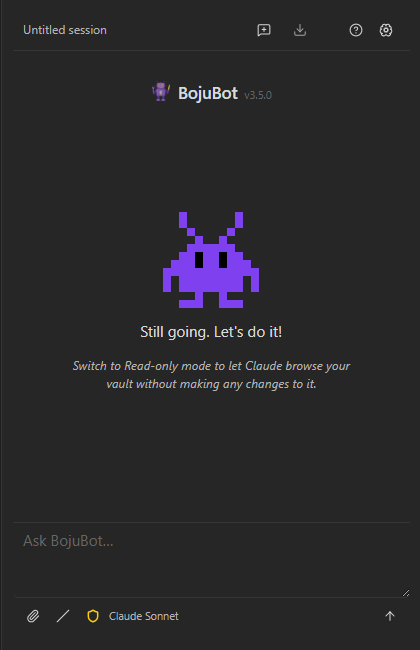
Starting a new session (or opening the panel with no active conversation) shows a welcome screen: BojuBot's mascot, a greeting, a tip of the day, and — once you have past conversations — a Recent sessions list of up to three, click any to resume. Click the mascot to open the About dialog.
About Dialog
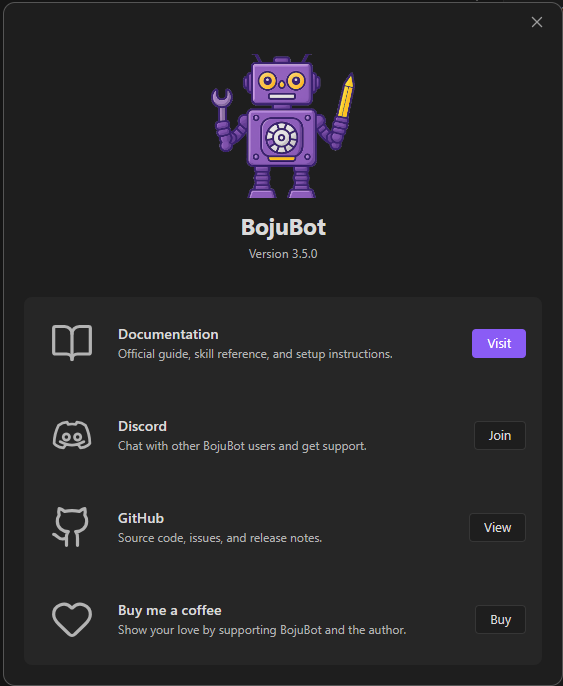
Open the About DIalog by clicking the About BojuBot icon in the toolbar, or by using the the BojuBot: About command. The dialog shows the BojuBot version and the installed Claude Code CLI version ("Claude Code: unknown" if the CLI couldn't be checked).
Attaching Context
Attached items appear in a bar above the input field. Click × to remove an item, or the pin icon to keep it attached for every subsequent message in the session.
@-mention a note
Type @ anywhere in the input to open an autocomplete dropdown. Press Enter to attach it the highlighted note. Start typing to filter by name. Press ↑ / ↓ to navigate, Enter or Tab to select, Escape to dismiss. The full contents of the selected note are prepended to your message.
Non-Markdown files show their extension in the dropdown. By default all vault files are included. To restrict to specific types, change @-mention file types in Settings.
Attachment button (paperclip)
| Option | What it does |
|---|---|
| Attach file | Opens your system file picker. Text files (.md, .txt, .js, etc.) are read inline. Images and PDFs are copied to a temporary folder so Claude can read them. |
| Attach URL | Passes a URL to Claude as-is. Claude fetches or references it based on your message. |
| @ Add note | Opens the same vault note search as the @ shortcut. |
Paste from clipboard
Paste images directly with Ctrl+V / Cmd+V:
- Screenshots — take a screenshot, paste into BojuBot
- Files from Explorer/Finder — copy a
.png,.jpg,.gif,.webp, or.pdfand paste
Pasted images appear in the context bar. They're saved to .obsidian/plugins/bojubot/tmp/ and are not automatically cleaned up.
Drag and drop
Drag any file from your filesystem and drop it onto the BojuBot panel. The panel highlights with a dashed border while dragging. Text files are read inline; images and PDFs are handled the same as the file picker.
Send selected text
Highlight text in any open note, then run BojuBot: Send selection as context from the Command Palette (or bind it to a hotkey). The selection is attached as a labeled snippet.
Permission Icon
Click the colored Permission Icon in the input toolbar to open a quick picker and switch the permissions mode:
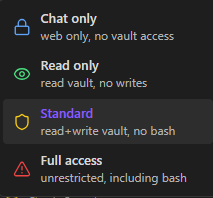
The change takes effect on the next message. See Permissions for details on what each mode allows.
Model Indicator
The model name shown in the input toolbar (e.g. Claude Sonnet) reflects the active Claude model. Click it to open the model picker and switch to a different model.
| Model | Best for |
|---|---|
| Claude Haiku | Fast responses, simple tasks |
| Claude Sonnet | Balanced speed and capability |
| Claude Opus | Complex reasoning and long tasks |
| Claude Fable | Long-running agents |
You can switch models mid-conversation — the session continues with its full history, and the new model takes over from your next message. This is handy for getting a second opinion: work through a problem with one model, then switch to another to review the result without re-explaining everything.
The selected model also becomes the default for new sessions and persists across restarts. If the session was started as a Custom session with its own pinned model, switching updates that session's model too.
TIP
The first message after a switch costs more than usual: prompt caching is per model, so the new model reads the conversation history uncached once. Later messages are cached again.
You can also switch via /model in the slash menu or BojuBot: Switch model in the Command Palette.
To add models not in the built-in list, see Custom models in Settings.
Effort
Effort controls how much thinking Claude does on each turn — lower is faster and lighter on your plan, higher reasons more deeply on hard problems. Click the gauge icon next to the model name to pick a level. When a level other than Default is active, the model indicator shows it, e.g. Claude Sonnet 5.5 · high.
| Level | What it means |
|---|---|
| Default | Let Claude Code choose (no level is sent) |
| low | Fastest replies, least thinking |
| medium | Balanced speed and depth |
| high | Deeper reasoning for harder tasks |
| xhigh | Extra thinking — slower, uses more of your plan |
| max | Most thinking — slowest, uses the most of your plan |
The list comes from your installed Claude Code CLI, so it may differ on other versions. If your CLI doesn't support effort levels, the gauge icon and the effort commands are hidden.
Like a model switch, an effort change applies from your next message and the session continues. The chosen level also becomes the default for new sessions. A Custom session can pin its own level; switching mid-session updates that pin too.
You can also switch via /effort in the slash menu or BojuBot: Switch effort in the Command Palette.
Plan Usage
Choose Usage from the / menu (or run BojuBot: Show plan usage from the Command Palette) to see how much of your Claude plan you've used — the current session and current week percentages and when they reset, plus Claude Code's breakdown of what's contributing. The report appears as a card in the chat.
Checking usage is free: it runs Claude Code's own /usage command in a separate process, so it isn't sent to Claude, doesn't become part of your conversation, and doesn't affect the context gauge. You can check it while Claude is still replying.
Context Gauge
A ring icon appears in the input bar after your first message. Hover to see how much of the 200K token context window remains. Click it to manually compact the session history if it's filling up.
Tool Call Visibility
While Claude is working, tool calls appear above the response bubble in real time — you can see what Claude is reading, writing, or searching. When the response completes, the tool list collapses to a single toggle line. Click to expand or collapse.
Running Obsidian Commands
Claude can execute Obsidian commands directly. Three are pre-approved by default:
| Command | ID |
|---|---|
| Quick switcher | switcher:open |
| Daily notes: Open today's | daily-notes |
| Search current file | editor:open-search |
You can manage the full list in Settings → BojuBot → UI Bridge & Commands.
How permission works
| Situation | What happens |
|---|---|
| Command in allowlist | Runs immediately |
| Command not in allowlist (prompt mode on) | Modal appears: Allow or Deny, with Don't ask again |
| Allow + Don't ask again | Runs and added to allowlist permanently |
| Deny + Don't ask again | Added to denylist — future attempts silently blocked |
| Command in denylist | Silently blocked (add to allowlist to re-enable) |
| Prompt mode off | Unlisted commands hard-blocked with an explanatory notice |
Opening & Navigating Files
Claude can open a note directly in your workspace as part of its response — for example, after creating or finding something you'll want to look at:
| Behavior | What happens |
|---|---|
| Open in current pane | Replaces what you're currently viewing |
| Open in a split | Side-by-side, doesn't disturb your current view |
| Open in a new tab | Stacked tab — doesn't replace or split anything |
| Jump to a heading | Opens the file and scrolls to a specific heading |
All of these are immediate — no confirmation needed — and Claude posts a short notice each time, so you always know what changed.
Other Actions
A few smaller things Claude can do as part of a conversation:
- Change how it addresses you (or itself) — just say so, e.g. "Call me Alex from now on" or "I'd rather you go by a different name." Persists across sessions.
- Request permission — if a task genuinely needs a capability your current permission mode blocks (e.g. a shell command that changes files, which Standard mode denies), Claude can ask instead of giving up silently. You decide via the denial card on your next message — see Permission Denials.
- Open Settings or the quick switcher — Claude asks first in chat text, waits for you to confirm, then acts on your next message. Never fires without that round-trip.
File Operations
Claude can rename, move, and delete vault files through Obsidian's own API rather than the filesystem directly — so wikilinks and embeds pointing at the file update automatically instead of breaking.
- Delete moves the file to trash per your vault's configured trash preference (system trash or
.trash/folder) — it's not a permanent delete. - Requires Standard or Full access permission mode. In Chat only or Read only mode these are no-ops — the current mode doesn't allow vault writes, so nothing happens (with a notice explaining why).
Example Prompts
"Summarize the note [[Project Alpha]]"
"Find all notes tagged #meeting from last week and create a summary"
"Rename all notes in 03_Cards that start with 'Untitled' based on their content"
"Open today's daily note"
"Refresh the Dataview on this page"
"Create a new note from my Project template"